Showing posts with label PC Tricks. Show all posts

How to Create Customized Browser for Your Computer

Yes, you heard it right! You can also create your own custom web-browser for your computer and browse within it. There may be a question rise in your mind that how we can make a browser without knowing any coding, but don’t worry because there is a free online tool which let you make your own browser with some customized features without any coding to do. If you want to make yours and want to know how then you’ve to read this post because here we’re going to teach you briefly how to make your own browser for PC.

Customizations you can apply:

In the browser you are going to make, you can apply the following customizations, i.e

1. Your own logo

2. Custom Name

3. Custom bookmarks and homepage

4. Custom features – given below etc.

How to Make Your Own Browser Online:

Now here we’re going to teach you how you can make your own web-browser for your computer, having your own logo icon, bookmarks etc. Actually we’ll be make use of MakeMyBrowser which let you do it. The process of making a browser with this is very easy and straight forward, all you need to do is to follow the below instructions and do the steps carefully.

Step-1: First of all you need to do is go to MakeMyBrowser’s WEBSITE [www.makemybrowser.com] and then click on “Start Now” button.

Step-2: In the new page, you will need to give a name to your browser and set your own (or pre-made) icon to the new browser, So enter the name in the first box, and click on ‘Select or upload’ button, a new box appear where you have to select an icon or click on upload button if you want to upload your own.

Step-3: Now next step is to add your bookmarks, so click on select bookmarks button at the lower-right corner. After you click on this button, it asks you that do you want to import your bookmarks from google chrome browser ? Now it is upto you, click import if you want or click “Continue/Skip” button if you don’t want.
Create Customized Browser
Step-4: Here you can add your own bookmarks to the browser, Gmail, Facebook, Yahoo and Amazon are already added if you want to add your own then you’ve to click on ‘Add A New Bookmark’ so you’ll be given two boxes first is to add the link and second is name. Also click on ‘Select Homepage’ if you want to select a homepage of your own choice. After setting that click on add features.

Create Customized Browser
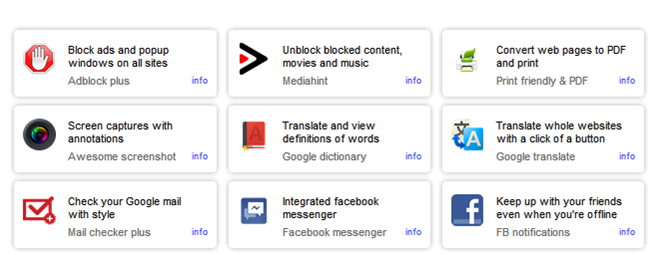
Step-5: Now here are some features you can add to your new browser you’re going to make i.e popup blocking, Unblock blocked sites, Translator, screen captures with annotations, etc. So select one by one in the list which you want to add to your newly browser and then click on Select Theme button.
Create Customized Browser
Step-6: Now you’ll be given 8 themes from which you can select a theme you want. As you select a theme, your browser is ready to download, now click on finish and download button so an automatic download starts and you can see the new browser you created in your downloads folder. Now you can install this on your computer and enjoy your own customized browser.

Read: How To Make Free Online Phone Calls
So friends, above we shared a web-based application which can be used in order to make your own web-browser for your computer, I hope you liked this post.

About the Author:
Basheer Ahmad loves to surf online share useful tools regarding internet/tech etc, through his blog. He recommends to Convert/Download Youtube Videos Using Free Online Tools without any software.
Posted by Ravi Kolhe | 1/20/2014 | Continue Reading...

What Makes the Best CPU Cooler?

When it comes to buy a PC, it is important to have the Best CPU Cooler in place so that the computer can keep working for longer hours without any concerns. Air cooling systems harness the power of air using one or more fans. A regular air-cooled system for your PC will have graphics card fans, case fans and a CPU fan on top of a large metal heat sink.

A cooling system will help you keep your expensive computer working efficiently and at its optimum level. Another type of cooling system, water based coolers use a series of tubes, water blocks, a radiator, coolants and a number of other components to help your system working without any loss of performance. Using a few fans can further help in enhancing the effect of the system by pushing around the water.

Usually, most of the computer systems are fitted with an intake fan for pushing external air into the hard drive and the CPU, and there is another exhaust fan to throw the hot air out of the rear. If you use your PC for demanding applications, it becomes essential to install a CPU cooler.

Usually, PC processors and graphic cards are always offered with stock fans. They can be identified by the roaring sound they make when you start your computer. Then there are systems with case fans. Most of them are designed for cooling over-clocked processors, but with higher sound.

Why manufacturers fit their PCs with air coolers? For one, air is cheap and even when you want to add a new and best CPU cooler for your system, an air-based cooler is going to cost lesser than a liquid cooling system. It is also possible to find bigger and more efficient aftermarket case fans that are quieter but offer better cooling.

According to computer experts, it is much easier to purchase and fix an air cooler as compared to building a water cooling system. An air-based cooler is especially ideal for those who don’t have much technical knowledge and seek an instant and easy solution. If you want to fix a new air cooler, all you need to do is to fix a few screws. A liquid system means getting the help of a professional.


What Makes the Best CPU Cooler
At the same time, this doesn’t mean that you must overlook liquid-based systems entirely. Conventional air cooling systems have 3 main disadvantages. Firstly, air fans are not as efficient as liquid based systems. They are not ideal for systems having over-clocked CPUs or multiple GPUs. Secondly, as already mentioned, air fans are always going to be louder than liquid-based systems. Thirdly, the heat sinks can become much larger in size, especially when you need more cooling.

Therefore, if you want to buy a PC make sure that it is a custom PC, one in which either an air or liquid-based cooler could be fitted depending on your requirements. The more accomplished PC users may want to build your own PC. The choice of the right cooler can make all the difference between running your system efficiently and dealing with a heated system.
Posted by Ravi Kolhe | 5/21/2013 | Continue Reading...

Get A Brief Idea On How to Prevent Data Loss

Data loss is not a simple and light matter. One becomes helpless when all the data of his company is lost. This seems to be a great problem for people who have the habit of creating documents on the computer and not having a handwritten copy. Hence storing the data solely on the computer parts alone is not a wise decision to take. Adequate steps should be taken to prevent any kind of data loss.

Avoid storing data on the same drive as your operating system

The My Documents folder proves to be the worst place for storing any data. Almost all the computer problems tend to affect the operating system and hence it needs to be reformatted and reinstalled each time. In the process, all the data in the particular drive will be automatically lost. The extra internal hard-drive will not at all be affected if there is any corrupted file in the operating system. Moreover this can also be installed in any other computer too. If installing an internal hard-drive seems complex to you, you can always opt for an external hard-drive. This just needs to be attached to the USB port. It is very easy to use and store data in it.

Create Backups of the files

If you are with the misconception that all your data is completely safe if you store it in a different location other than the operating system drive, then you are wrong. Regular backups of the files should be created and let's even the computer accessories which include the cds, the floppies, hard drives which can be used as backups can also get destroyed i.e. the cds can get scratches, the data from the floppies can get erased etc. Therefore, if you feel that the data is too important, then you should create a second backup of your files. The best solution would be to have a hard copy of your documents. You will be at least ensured that you have the data with you.

Beware of the viruses

How to Prevent Data Loss
Always make sure that the data you store in your computer parts does not contain viruses in any form. Apart from the viruses, the email attachments also prove to be a threat to your data as while downloading and saving, these may get overwritten with your existing file with the same name. Hence you should always make an effort to set your email program such that it gets saved in a unique location and moreover, make sure to check twice or thrice before saving the email attachments on your usb flash drives. The last but not the least threat lies with the user himself. Majority of the errors occur while editing the data. Hence the user should be utmost careful while editing data so that no data is deleted accidentally. Otherwise, if you are not confident of your editing skills, then make an attempt to create a copy of the existing file so that the original data is retained.

Author Bio:
Hence the best option would be attach some computer accessories. The computer accessories may include a second hard drive or an external hard disk.
Posted by Ravi Kolhe | 5/21/2013 | Continue Reading...

Power Point Presentation for corps

Microsoft power point is nothing but simple designing software to design template slides to make professional and personal presentation to convey important information in a structured method. Power point has given a huge bonus hand in the working procedure. In the professional working arena power point has made itself capable enough to be an essential communication tool.

In the professional working, companies use power point to present a virgin idea about the entire working sketch to the client. It can be used to convey the working structure to the employees. It is highly influencing in the agenda setting of the company. Information about the plans and growth rate can also be posted to the employees.

How Microsoft power points become so important to the companies work procedure????

• Templates: few default designed templates are available in power point to work with. Templates are made keeping the general slide designing format in mind. It makes the working simple and time effective. Suppose when an employee needs to make power point presentation about daily work rate and the changing plans, he or she needs some quick way to do that presentation that he or she can concentrate on the content more rather than the designing. There are few people those who are very efficient with the numbers or the contents but do not have any idea about effective designing, templates may help them. Otherwise there are opportunities to work on blank layout to design as per own.

• Typography: typography deals with font size, font design, font color, font alignment. Using different size, color and design; effective and interesting content can be presented. Different layers and shade helps to grab the eye of the reader or the viewer and leave with an effective impact on the mind.

• Clipart: cartoon and caricatures can be used in the presentation from the clipart box to create the mood of the presentation. It can be useful and impactful for the presenter to use clipart in the presentation that may bang in the head of the viewer to remember the point for a long time.

• Picture: pictures can be added to the presentation on the slides to make a personal back ground or to give authentic reference to the text. Using interesting and appropriate pictures can make presentation impactful and useful. Sometimes using of pictures minimizes the text size and effort and it comes with an output of worth reading.

• Video: interesting and relevant visual in support of the text or the company powerpoint presentation topic can be impactful and worth watching. Visual will give a different shade and layer to the presentation. It minimizes the effort of massive text content. Visual can be used as the authentication tool for the presentation. Visual are very simple to add on and play. One very important thing must be kept on mind while using video in the presentation that one must put the original video file along with the power point presentation file in the same folder or else the video will not run.
Posted by Ravi Kolhe | 5/10/2013 | Continue Reading...

5 PC Maintenance Tips

In this day and age, we depend on our computers. They keep us connected to the outside world and help us take care of important tasks, like paying the bills. You need to make sure you take proper care of your computer. Here are a couple of ways you can make sure you get your money's worth out of your computer before you have to cash in for a new one.

1. Update Your Computer's Software
Your computer's operating system is a living, breathing organism. It is constantly being updated. Companies like Microsoft release updates for their operating system almost weekly. You need to make sure you stay on top of these updates. Just have your computer automatically download and install these updates for you so you can enjoy new features, bug fixes, and added protection for your operating system.

2. Physically Clean Your Computer
Computers can accumulate masses of dust and debris over a short period of time. It's always a good idea to do your best to clean it out. Just grab a can of compressed air from the store and aim it into your computer's cooling fans. This will help loosen the dust to prevent overheating, which can greatly slow down your computer. While you're at it, make sure you take some of that compressed air to your keyboards to make sure you don't have any food crumbs stuck in the gaps.

3. Defragment Your Hard Drive
Your computer's operating system should have a defragmenter tool. The purpose of this tool is to help consolidate data on your hard drive to help your computer run faster. This process can take several hours, depending on the size of your hard drive and the amount of data you have stored. It may also take longer if it is your first time running the program, so make sure you run it when you plan on not using your computer, like at night while you sleep.

4. Protect your computer with an Anti-Virus program
Viruses, spyware, malware, and other malicious files can cause much harm and ruin your computer. You should have an active anti-virus program and run it at least once a week. These types of programs can prevent your computer from being infected and even remove any existing infections.

5. Backup Your Information
Always be prepared for the worst. Your computer's files are very precious and important. Having your computer crash and not being able to recover your files can be very problematic. It's a good idea to invest in an external hard drive so you can remotely backup your files. You can also use an online website that can backup your information.

About the author: Michael is a blogger for Smith Monitoring, the leading provider of home security systems. He is obsessed with taking care of his computer and loves spreading the knowledge. He wants to make sure everyone gets their money's worth out of their technology.
Posted by Ravi Kolhe | 4/20/2013 | Continue Reading...

Best ways to master the Linux commands

So you want to join the world of Linux - the dark society of the geeks - but you are not an expert with the Linux commands? Do not be afraid, the Linux commands are not as hard as you believe. In fact, in many Linux distros like Ubuntu, Linux Mint or Fedora, you can do tons of stuff without ever using the Linux prompt, but if you do take the time to learn it you’ll open a whole world of power.
And as a matter of fact, learning and mastering the Linux commands is very beneficial if you want to be a programmer or a hacker. In this article I’ll attempt to give you a beginner course in the Linux prompt.

1. Use “!”  to execute the last command
This is a very helpful tips, it can save you a lot of time. It is very likely that you have used the same command multiple time within a fraction of seconds.

2. Use “kill” to stop a running process
This command is used to stop a running process instantly. You dont even have to click on the X button to close a process. Another similar commands are xkill, pkill, kill-all.

3. Use list to list information about files:
This command can be used by the Linux user for fetching list information of the file or files stored.

4. Use “Mkdir” to create new folder(s)
To create new folders and directories, this command is the best tool you can use. You can also create multiple folder by using this command.

5. “Passwd” to modify the password for a user
It is easy to control and change the password of a user in Linux. To modify the user password this command can be used effectively.

6. “pwd” means print working directory.
This command represents the print working directory. By using this command you can print the working directory.

7. “rmdir”
This command can be used to removed folders and directories


Best ways to master the Linux commandsThis is just a brief tutorial about the Linux commands, there is a lot to learn about the command prompt. However, what I just wrote in this article should be enough to give you a basic tour to get your started. Once you step deeper into the Linux world, you will know how powerful the command line is. The more you master the command line, the more you will be able to do. The graphic interfaces are nice to make things easier, multitask and do certain tasks faster. But the true power in Linux comes from the command prompt, with it you can always do many more complicated tasks faster.

About the author:
This article is written by An, a geek who knows a lot about Linux and Android. If you have a netbook and want to try Linux on it, you should check his recommendation for the best linux for netbooks.
Posted by Ravi Kolhe | 4/14/2013 | Continue Reading...

Tips for How to Copy to A Flash Drive

How to Copy to A Flash drive is guide for beginners who want to learn about Flash Drives.  Flash drives are just a USB hard drive that is very portable. They are very handy but if you are moving large amounts of data CD or DVD is much cheaper up front if you already have a burner. But a flash drive can be used over and over. For the simple thought it is a small hard drive that you put in the USB port. If you have heard of a pen drive they are the same thing.

These USB flash drives are integrated with a USB interface. They are small, removable and rewritable. Their main advantages over other storage devices are  that they are faster, more compact, can hold more data and are much more reliable thanks to their durable designs and lack of moving parts. You can also get these in various capacities ranging from 32MB to may be 8GB also. As in comparison to the floppy drives that are capable of storing just 1.4MB of data, the USB drives are capable of offering a huge storage capacity.

How to Copy to A Flash Drive
How to Copy to A Flash Drive-
1) Insert the USB flash drive into the USB port.
2) Your computer should automatically detect it and open up a window that has its contents. If not automatically detect you can Open "My Computer"(in Win XP) and double-click the removable disk icon. This is the USB flash drive.
3) Find the file that you need to move onto it and just drag and drop it into the Pen Drives window or right-click the file, select "Send to" and choose the USB flash drive from the list of available drives.
4) Its as simple as that. Then close the window and disconnect the drive. For disconnect drive look for the Remove Hardware icon in the bottom-right corner of the bar at the bottom of your screen and choose the "Safely remove mass storage device" link beside it.
Remember: Flash drives or pen drives are one of the most simple and efficient way of data transfer, but increases the risk factor so as happened to these drives also. With being very flexible it has become a very simple ride for viruses to spread. As it is very easy for the Viruses or Trojans to copy their traces to these removable drives.
Posted by Ravi Kolhe | 3/08/2013 | Continue Reading...

5 Simple Ways to Recover Lost Password

Passwords are one of the important things for any system. It will help you to maintain your identity so that others will not be able to view your account. Generally, a password is made of many characters or digits and will not use any special character or a white space in between.

Setting a password on your account is an effective method for protecting your personal data. However, if your password is lost it can be a real problem. if your password is lost use below ways to reset your  password.

1) OphCrack: Ophcrack is simply the best free Windows password Cracker software. Open Ophcrack website, click the ‘Download Ophcrack LiveCD’ button. After you download burn the Live CD and boot your computer from CD and follow on screen instructions.
2) Password Cracker: It is also windows password recovery software. This application is very small in size and it comes packed in an archive with no install process whatsoever. Just unpack and run it.
5 Simple Ways to Recover Lost Password
3) Messenger Key: Messenger Key is a free program that allows you to recover passwords for ICQ, MSN, Google Talk and Yahoo instant messengers.

4) Free Word Excel password recovery Wizard: this free utility is a good way to recover password for Word or Excel file.

5) Mail Passview: Mail PassView is a password recovery tool that can extract the forgotten passkeys from the  most popular email clients, including big names such as Mozilla Thunderbird and Outlook Express.

Posted by Ravi Kolhe | 1/24/2013 | Continue Reading...

3 Best Services to Make Own Free Website

Building a website is a great way to share your ideas and thoughts with the world. The website you create may be for fun, it may be for profit, or some combination of the two. Knowing your expectations makes it much easier both to design your website, and to track and make sense of the results. Today, there are many websites for free, these websites presents all the essential features.

Creating free websites has never been easier thanks to the numerous sites, hosts and programs that allow anyone to make their own website and have it up on the Net.
3 Best Services to Make Own Free Website 
Below are some free websites. After sign up, you can create a free websites, publish it, and if you no longer need it or find that it doesn't suit your taste or purpose, you can delete it and not lose anything in the process, since you haven't paid anything for it in the first place.

Posted by Ravi Kolhe | 1/24/2013 | Continue Reading...

2 Tips for Format A Computer Without CD

Before start discussion on format a computer without cd, we know formatting is easier and faster when having severe problems with their computer that could possibly be caused by a virus, to delete the partition and reformat the hard drive because it ensures that the virus is gone.  Reformatting the hard drive is like wiping off a chalkboard and starting over with a clean surface.

If you have used your PC for a long period of time and it has become slow and bogged down, reformatting can help make your computer seem brand new again. If a computer is reformatted in this manner, caution should be taken to reformat all hard drives attached to the computer since the virus that infected the machine could have infected files on other hard drives, not just the primary drive.
You can also use the built-in software on your computer to format a hard drive. There are a number of tools to help you do these things. Formatting a hard drive causes all of the data on the drive to be deleted, so don't format a hard drive unless you've backed up.

2 Tips For Format A Computer Without CD:

Tips for Format A Computer Without CD
1: Format using command prompt
To format using command prompt click start ->All Program-> Accessories-> command prompt then 
type format <drive letter:> /fs:ntfs (fs specifies the type of file system) example: format d: /fs:ntfs 
(you can also access command prompt using run and type 'cmd')
Tips for Format A Computer Without CD
2: Format using Computer Management
Log in as an administrator on your PC. Then start -> control panel-> Administrative Tools->  Computer management then select Disk Management located in storage section, then just right  click on drive that you want to format and select format option.

Using this method you can't format primary drive If you want to format primary drive also you can follow steps in Step by step XP Installation. Both methods are simplest ways to format hard drive excluding primary drive. I hope this 'format a computer without cd' short tutorial help you to repair your PC.
Posted by Ravi Kolhe | 12/19/2012 | Continue Reading...

Step by Step XP Installation Tutorial

In step by step XP installation tutorial, I am going to explain how to format hard drive partition and install windows XP using the installation CD. Before you start this process you should backup your files and data include my documents, favorites folder, files and more that are saved in C: drive. 

Installing XP using installation CD is easy, this means after you insert a Windows XP disc into your PC, it should begin automatically. But I suggest you do not format a new computer yourself if it is under warranty. So, below are steps to installation.

Step by step XP installation:
1. Put Windows XP installation disc into your CD or DVD drive & restart your PC.
When computer boot, it prompt "Press any key to boot from CD...” but if not prompt you need to change BIOS setting.

2. To change BIOS setting, restart your computer, when starts booting usually by pressing functions keys i.e. F1, F2, F10 or maybe the delete key you can access BIOS menu. Then find boot options then you have to set CD ROM as first boot device. Save and exit. Then repeat step one.
Posted by Ravi Kolhe | 12/09/2012 | Continue Reading...

How To Improve Pc Performance

Hey, Do you want to speed up your slow pc? do you know how to improve pc performance? there are many ways to improve pc performance,  Follow these tips and you will definitely have a much faster and more reliable PC!

How to Improve PC Performance...?

1. Defragment:
When files are updated, the computer tends to save these updates on the largest continuous space on the hard disk, which is often on a different sector than the other parts of the file. When files are thus fragmented, the computer must search the hard disk each time the file is opened to find all of the file's parts, which slows down response time. When machines get too fragmented, they suffer serious performance degradation. Usually, the built-in Windows defrag tool works fine. If you are looking for something a little better, try Defraggler. It can work on a whole disk or just a part of one.

If you are using the Windows disk defragmenter which is located at start menu>accessories>system tools>disk defragmenter, you can choose to “analyze” first before you choose defrag. This feature will tell you if you need to perform this task or not

2. Avoid multitasking with large programs:
I have a lot of experience in multitasking and have realized that some programs cannot be open at the same time as others. For example you should not be running a large program like Photoshop or Pinnacle video studio, while running a virus scan at the same time. We all know what the right thing to do is, but we just can’t help ourselves.
Posted by Ravi Kolhe | 5/15/2012 | Continue Reading...