Showing posts sorted by relevance for query pc. Sort by date Show all posts

What Makes the Best CPU Cooler?

When it comes to buy a PC, it is important to have the Best CPU Cooler in place so that the computer can keep working for longer hours without any concerns. Air cooling systems harness the power of air using one or more fans. A regular air-cooled system for your PC will have graphics card fans, case fans and a CPU fan on top of a large metal heat sink.

A cooling system will help you keep your expensive computer working efficiently and at its optimum level. Another type of cooling system, water based coolers use a series of tubes, water blocks, a radiator, coolants and a number of other components to help your system working without any loss of performance. Using a few fans can further help in enhancing the effect of the system by pushing around the water.

Usually, most of the computer systems are fitted with an intake fan for pushing external air into the hard drive and the CPU, and there is another exhaust fan to throw the hot air out of the rear. If you use your PC for demanding applications, it becomes essential to install a CPU cooler.

Usually, PC processors and graphic cards are always offered with stock fans. They can be identified by the roaring sound they make when you start your computer. Then there are systems with case fans. Most of them are designed for cooling over-clocked processors, but with higher sound.

Why manufacturers fit their PCs with air coolers? For one, air is cheap and even when you want to add a new and best CPU cooler for your system, an air-based cooler is going to cost lesser than a liquid cooling system. It is also possible to find bigger and more efficient aftermarket case fans that are quieter but offer better cooling.

According to computer experts, it is much easier to purchase and fix an air cooler as compared to building a water cooling system. An air-based cooler is especially ideal for those who don’t have much technical knowledge and seek an instant and easy solution. If you want to fix a new air cooler, all you need to do is to fix a few screws. A liquid system means getting the help of a professional.


What Makes the Best CPU Cooler
At the same time, this doesn’t mean that you must overlook liquid-based systems entirely. Conventional air cooling systems have 3 main disadvantages. Firstly, air fans are not as efficient as liquid based systems. They are not ideal for systems having over-clocked CPUs or multiple GPUs. Secondly, as already mentioned, air fans are always going to be louder than liquid-based systems. Thirdly, the heat sinks can become much larger in size, especially when you need more cooling.

Therefore, if you want to buy a PC make sure that it is a custom PC, one in which either an air or liquid-based cooler could be fitted depending on your requirements. The more accomplished PC users may want to build your own PC. The choice of the right cooler can make all the difference between running your system efficiently and dealing with a heated system.
Posted by Ravi Kolhe | 5/21/2013 | Continue Reading...

How To Improve Pc Performance

Hey, Do you want to speed up your slow pc? do you know how to improve pc performance? there are many ways to improve pc performance,  Follow these tips and you will definitely have a much faster and more reliable PC!

How to Improve PC Performance...?

1. Defragment:
When files are updated, the computer tends to save these updates on the largest continuous space on the hard disk, which is often on a different sector than the other parts of the file. When files are thus fragmented, the computer must search the hard disk each time the file is opened to find all of the file's parts, which slows down response time. When machines get too fragmented, they suffer serious performance degradation. Usually, the built-in Windows defrag tool works fine. If you are looking for something a little better, try Defraggler. It can work on a whole disk or just a part of one.

If you are using the Windows disk defragmenter which is located at start menu>accessories>system tools>disk defragmenter, you can choose to “analyze” first before you choose defrag. This feature will tell you if you need to perform this task or not

2. Avoid multitasking with large programs:
I have a lot of experience in multitasking and have realized that some programs cannot be open at the same time as others. For example you should not be running a large program like Photoshop or Pinnacle video studio, while running a virus scan at the same time. We all know what the right thing to do is, but we just can’t help ourselves.
Posted by Ravi Kolhe | 5/15/2012 | Continue Reading...

Which is Best for Your Needs- Laptop or Desktop?

Which one you prefer, desktops or laptops? This is an old concern that does not actually have a wrong or right answer. Both desktop and laptop computers can be superior than the other according to the given issue and the individual requirements of the person making use of each particular machine, but let us discuss a few of the pros and cons of each and try and bring any decision from this discussion.

Evaluate the following benefits and drawbacks of both the devices while purchasing.
Laptops:
Price: Normally, you are going to spend extra for a laptop as compared to a desktop PC. Smaller components are costly and you'll see that reflects in your affordability. If your family members utilize the computer generally for internet and word processing, a laptop computer might be a viable option. However, video gaming, video enhancing and even desktop establishing require extra memory, and probably high-end graphics and sound cards. All of these will add to the expense and the mass of the device.

Wi-Fi features:
Go to any leading retail outlet and try to locate a new laptop computer that doesn't come with any sort of Wi-Fi LAN features. It is likely that it will eventually be difficult to discover one. A lot of desktop computers are not equipped with Wi-Fi features and it is a thing that you would need to set up on your own. The majority of the modern laptops also incorporate Bluetooth functions.

Amusement wherever you travel: It is becoming common that you can immediately reply to any message, statement, post, or e-mail. You can enjoy music, watch movies, and browse the world-wide-web - wherever you choose to go. That isn't possible having a desktop computer.

For Students: For university students, laptops are very helpful as they can bring them to class, their library, and other zones in the campus that provides access to the internet. They can complete their research almost anyplace. At the same time, they can grant presentations having a laptop.

Desktops:
The desktop computer is the most common machine to be aware of, for the reason that it has been available for a long time as people have found it handy to have a custom built PC. These days, the majority of desktop computers stand vertically, and adopts what is referred to as the ATX format.

Storage Space: It is simpler for a desktop PC to have a higher memory and to support more RAM compared to a laptop simply because there's extra space offered for the memory space. The storage space in a desktop PC will usually enable the person to select almost unlimited equipment and possibilities that a laptop just may not have to support. Things such as a high speed processor chip, the most current innovative sound and video cards, additional slots for external cards and plenty of space for storage for all the programs including music and movies that you will ever require.

Size: As for drawbacks, there's definitely size - with a standalone monitor, mouse and keyboard, a desktop computer requires plenty of space. Desktop computers are not always built to be calm, so be ready to hear whirring fans.

As you can realize, the selection between a desktop and a laptop is specified to your family members. There isn't any appropriate answer however the desktop choice is definitely the option if you want to build your own PC. But, using this information you will be able to consider the life-style of your family members and ultimately come to a good decision.
Posted by Ravi Kolhe | 4/08/2013 | Continue Reading...

2 Tips for Format A Computer Without CD

Before start discussion on format a computer without cd, we know formatting is easier and faster when having severe problems with their computer that could possibly be caused by a virus, to delete the partition and reformat the hard drive because it ensures that the virus is gone.  Reformatting the hard drive is like wiping off a chalkboard and starting over with a clean surface.

If you have used your PC for a long period of time and it has become slow and bogged down, reformatting can help make your computer seem brand new again. If a computer is reformatted in this manner, caution should be taken to reformat all hard drives attached to the computer since the virus that infected the machine could have infected files on other hard drives, not just the primary drive.
You can also use the built-in software on your computer to format a hard drive. There are a number of tools to help you do these things. Formatting a hard drive causes all of the data on the drive to be deleted, so don't format a hard drive unless you've backed up.

2 Tips For Format A Computer Without CD:

Tips for Format A Computer Without CD
1: Format using command prompt
To format using command prompt click start ->All Program-> Accessories-> command prompt then 
type format <drive letter:> /fs:ntfs (fs specifies the type of file system) example: format d: /fs:ntfs 
(you can also access command prompt using run and type 'cmd')
Tips for Format A Computer Without CD
2: Format using Computer Management
Log in as an administrator on your PC. Then start -> control panel-> Administrative Tools->  Computer management then select Disk Management located in storage section, then just right  click on drive that you want to format and select format option.

Using this method you can't format primary drive If you want to format primary drive also you can follow steps in Step by step XP Installation. Both methods are simplest ways to format hard drive excluding primary drive. I hope this 'format a computer without cd' short tutorial help you to repair your PC.
Posted by Ravi Kolhe | 12/19/2012 | Continue Reading...

Step by Step XP Installation Tutorial

In step by step XP installation tutorial, I am going to explain how to format hard drive partition and install windows XP using the installation CD. Before you start this process you should backup your files and data include my documents, favorites folder, files and more that are saved in C: drive. 

Installing XP using installation CD is easy, this means after you insert a Windows XP disc into your PC, it should begin automatically. But I suggest you do not format a new computer yourself if it is under warranty. So, below are steps to installation.

Step by step XP installation:
1. Put Windows XP installation disc into your CD or DVD drive & restart your PC.
When computer boot, it prompt "Press any key to boot from CD...” but if not prompt you need to change BIOS setting.

2. To change BIOS setting, restart your computer, when starts booting usually by pressing functions keys i.e. F1, F2, F10 or maybe the delete key you can access BIOS menu. Then find boot options then you have to set CD ROM as first boot device. Save and exit. Then repeat step one.
Posted by Ravi Kolhe | 12/09/2012 | Continue Reading...

How to Take Screenshots on an Android Device

Want to take a screen with your android tablet or mobile phone?If the answer is positive, the first thing you need to do is to check whether your android device supporting screenshots becausetaking a screenshot on Android deviceis not as straightforward as it seems. The operation system Android 4.0 or later offers us a built-in way to take a good screenshot, however, if your device using an older version of the Android, it’s little consolation to capture a screenshots.

How to Take Screenshots on an Android Device
On the whole, there are two types of all the android devices; one is the device support a built-in way to take a good screenshot, the other is not. Aimed at the two types of mobile phones,below editor will show android user an easy-to-use guide helping android user to take the screenshot on an Android Device respectively!

For the Devices that support screenshots: Android 4.0 or above

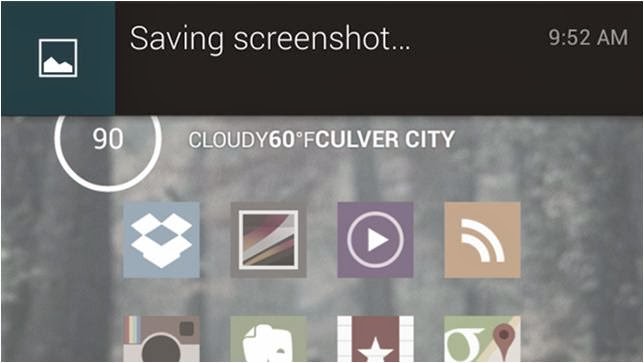
Well, most of the android devices that equipped with the operation system Android 4.0 or latercan take the screenshots directly. So if you want to capture a picture of the phone’s screen, just hit the Volume Down button and keep it down for a while, at the same time press the Power button, then you will get a prompt message allowing you to take a screenshot. Why we can capture a screenshot in this way? It is because most of the Mobile phone makers had upgrade the phone operationsystem and screenshots are built right into your phone!

For the Device that don’t support screenshots: Android 2.3 or below

Well, for the devices that do not support screenshots, it is a little trouble to get a screenshots. Generally we go and get an app for help. There exists many free app on the Internet can help you to take a screenshot; unfortunately they all can’t work on anunrooted android device.

If you don't want to root your android device because of the complexhigh-risk operation,$3 will save you much energy. An app named No Root Screenshot It (£2.99) is a well-received program easily enables you to capture a screenshot, with it what you should do is download and install it on your android device.

Note: the app needs connect the android device to you PC via an USB cable because when you installed it on your device and connect it to you PC, it will instruct you to get a free desktop application to help you finishing the screenshots job. Once the two matched apps were installed successfully inturn, the app will enable screenshots on the device.

Author the Author:
Jerry Brown is a good writer of drm-assistant.com. He writes for it for two years and step into the software industry for three years. The app DVD ripping program his site shares with the DVD movie lovers had earns much praise. Plus it can take DVD region code off as well!
Posted by Ravi Kolhe | 1/23/2014 | Continue Reading...

Computer Cleanup Software for Optimize Performance

CCleaner
Do you know? there are many different files and programs saved on your computer you never actually use. There is no need to leave these files to clutter up your hard drive when you can be using that space for data you access on a regular basis. If there are large numbers of unused files you need to remove all at once, you can use the disk cleanup utility CCleaner.

It removes unused files from your system - allowing Windows to run faster and freeing up valuable hard disk space. Ccleaner is supported with Windows 2000 / XP / Vista / Windows7 / XP64 / Vista64 / Windows7 64 / Windows8 / Windows8 64. You can download CCleaner from FileHippo.com.
Download CCleaner (Aprx.Size: 4.00MB)

Computer Cleanup Software for Optimize Performance CCleaner
  • Cleans Windows - Recycle Bin, Recent Documents, Temporary files and Log files.
  • Cleans Browsers- IE, Firefox, Chrome, Opera, Safari.
  • Cleans traces of your online activities such as your browsing history.
  • It also safely cleans Registry and also installed application.

Defraggler
Disk defragmenting is best way to improve PC Performance. Defragmentation is the process of putting file pieces back together. Disk defragmenters do is re-write files into contiguous blocks of free space making sure that all file fragments are written in a consecutive order. Hard drives which have been used for a year or more could certainly benefit from defragmenting. Defraggler lets you specify one or more files, folders, or the whole drive to defragment. You can use Defraggler program on Windows XP, Vista, Windows 7 and Windows 8.  
Download Defragger (Aprx.Size: 3.64MB)

Computer Cleanup Software for Optimize Performance Defraggler

  • Defraggler is just as safe for your files as using Windows.
  • Organizes empty disk space to further prevent fragmentation.
  • Boot time defrag of system files.
  • Supported to window Operating Systems.

Related Post(s):
5 Simple Ways to Recover Lost Password
How To Improve PC Performance
Posted by Ravi Kolhe | 3/12/2013 | Continue Reading...

5 Cool Cloud Backup Apps for Android

Mobile device adoption is a growing trend for years, so it’s not surprising that their features and performance are getting better and better. By now you have probably started using your Android device instead of your PC for most of your everyday needs. This means that you have gigabytes of important data you want a constant access to. To ensure that your most important files are always at your hands, you should consider backing up your device to the cloud by using one (or more) of the services designed for that.

Google Drive

5 Cool Cloud Backup Apps for Android
Google’s online storage and backup service is a feature-rich app you can smoothly use on your Android device for backing up different kinds of data. The reason it is regarded as one of the best cloud backup solutions is the fact that it works seamlessly on mobile devices and offers plenty of storage, syncing and sharing features at a low price. In fact, free Google Drive account provides you with 5GB of free storage space, which can be enough for storing your most important files. Using this kind of backup means you’ll always be able to access your data, even if you intend to replace your device and move the data to a new one.

Dropbox

Dropbox is an alternative to Google Drive, which offers somewhat different sharing and collaboration features, but is still an excellent solution for file backup. Dropbox gives only 2GB of storage space for free, but you can expand this amount through its referral program. The service automatically updates your files and keeps the history of document changes for 30 days, meaning that you can access the previous versions of your files in case you need them. For paid accounts, the version history period is unlimited. Apart from this, you can easily share your files with the users you choose and access them from multiple devices.

InDefend Mobile Backup

If you want to keep your contact data, call log, settings and messages safely in the cloud, you should start using the InDefend Mobile Backup app that allows you to backup all these files in several simple steps. You need to create an InDefend account within the app itself and allow it to access the data you want to send to the cloud. The app automatically encrypts your files and allows you to schedule backups, so that you can be sure you’ll always have the access to the latest version of your files.

Sandisk Memory Zone

This free app supports plenty of cloud storage services such as Google Drive, Dropbox, Box and SugarSync and it allows you to store the data from your SD card in the cloud. You can create a customized backup plan by scheduling backups and choosing a cloud storage provider of your liking. Sandisk Memory Zone is easy to install and use, which is why it can be an excellent backup solution for your Android phone.

G Cloud Backup

G Cloud Backup allows you to send your photos, notes, call logs or messages to the cloud. It is a small sized app with an intuitive interface, which lets you backup and restore all the files you choose. One of the most attractive features of G Cloud is the fact that it gives you generous 8GB of free space, which may be more than enough for having all your phone data in the cloud.

About the Author: Olivia Still is a blogger, tech addict, and cloud computing enthusiast. Her field of expertise is Magento hosting.
Posted by Ravi Kolhe | 6/28/2013 | Continue Reading...

Dial Up Connection – How does it work?

Dial up internet connection is becoming more and more rare due to the introduction of the broadband and wireless internet connections, however it is still commonly used by more people than you would expect.

Dial up internet connection is a connection which is used by connecting your telephone line to an outside ISP, also known as an Internet Service Provider which ultimately connects you to the internet. The parts of a dial-up connection include a modem; this transmits the signal from your computer to your phone line, connecting it to the modem located at your ISP, as well as a telephone line.

A dial up internet connection can connect to the internet by the user giving the signal from the computer. For example, you double click on the internet browser whether it is Firefox, Google Chrome or Internet Explorer. This will subsequently initiates the dial up process so that you can use the internet. The dial up process begins by dialling in; you will be able to hear the numbers being dialled alongside a series of clicks and beeping noises. This takes place to allow the connection to modulate to the ISP’s modem. When this process is complete, it has now gained an Internet Protocol or in other words an IP address from the ISP which enables your PC to connect to the Internet network.

Despite the dial up connection method of connecting to the internet known for being inexpensive, there are reasons for this. Dial up internet connection can run at an extremely slow pace, especially when streaming videos. This is because the phone line used in dial-up connections permits only a fairly limited stream of data from the ISP. For example, most dial-up connections allow about 56 kilobits per second while broadband permits as much as 512 kilobits per second, which makes a world of difference in terms of the speed of your Internet connection.

Dial up connection despite being over powered by the rival of broadband is still commonly used around the world as it works effectively like a pay as you go phone. It is a great option for low budgets however speeds can be very unreliable and slow. If you find that you do not need a 100% connection all of the time, then a wireless connection is something you should take a look at and consider.
Posted by Ravi Kolhe | 5/10/2013 | Continue Reading...

5 PC Maintenance Tips

In this day and age, we depend on our computers. They keep us connected to the outside world and help us take care of important tasks, like paying the bills. You need to make sure you take proper care of your computer. Here are a couple of ways you can make sure you get your money's worth out of your computer before you have to cash in for a new one.

1. Update Your Computer's Software
Your computer's operating system is a living, breathing organism. It is constantly being updated. Companies like Microsoft release updates for their operating system almost weekly. You need to make sure you stay on top of these updates. Just have your computer automatically download and install these updates for you so you can enjoy new features, bug fixes, and added protection for your operating system.

2. Physically Clean Your Computer
Computers can accumulate masses of dust and debris over a short period of time. It's always a good idea to do your best to clean it out. Just grab a can of compressed air from the store and aim it into your computer's cooling fans. This will help loosen the dust to prevent overheating, which can greatly slow down your computer. While you're at it, make sure you take some of that compressed air to your keyboards to make sure you don't have any food crumbs stuck in the gaps.

3. Defragment Your Hard Drive
Your computer's operating system should have a defragmenter tool. The purpose of this tool is to help consolidate data on your hard drive to help your computer run faster. This process can take several hours, depending on the size of your hard drive and the amount of data you have stored. It may also take longer if it is your first time running the program, so make sure you run it when you plan on not using your computer, like at night while you sleep.

4. Protect your computer with an Anti-Virus program
Viruses, spyware, malware, and other malicious files can cause much harm and ruin your computer. You should have an active anti-virus program and run it at least once a week. These types of programs can prevent your computer from being infected and even remove any existing infections.

5. Backup Your Information
Always be prepared for the worst. Your computer's files are very precious and important. Having your computer crash and not being able to recover your files can be very problematic. It's a good idea to invest in an external hard drive so you can remotely backup your files. You can also use an online website that can backup your information.

About the author: Michael is a blogger for Smith Monitoring, the leading provider of home security systems. He is obsessed with taking care of his computer and loves spreading the knowledge. He wants to make sure everyone gets their money's worth out of their technology.
Posted by Ravi Kolhe | 4/20/2013 | Continue Reading...

Few Gadgets Which Makes Your Boring Travel Forgettable

Traveling can be quite exciting especially of you are heading to the destination for the first time. It can also be drudgery if it is a frequent thing for you. Traveling long distances tom places when there is nothing to view is also painful especially on air. There are a number of things that people will indulge in when traveling to ensure that they do not get bored. Traveling using Qantas airways can be as boring as any other travel company which is the reason why Qantas Customer service is more than ready to help you enjoy your flight. Other than giving you the best suggestions on what you can use on board to make your travel experience more interesting, they will also give you tips on what gadgets you can carry for the same. Here are a few gadgets that you can carry and use on board to make you flight experience more interesting.

iPod/ Mp3 player

ipod
The best playlist on your iPod or mp3 player will make a difference no matter how long the journey is. It is a great time to catch up on some of your favorites and where possible learn the lyrics. The power of music when it comes to relaxing and lifting up the soul cannot be under estimated. Your favorite music in an iPod will make the difference between how long or short a journey is. iPods these days will do more than carry music. They are a great way to carry videos and movies besides games. You can indulge in your favorite pass time as you play some arcade games or catch up with your movie list by simply loading your iPod with what you need.

Laptop

The rules and regulations when it comes to gadgets have loosened allowing clients to use as many as they can. The laptop is a major source of entertainment. You can have a go at movies, games and music from one device which is more than enough to keep you busy through a flight. Planes allow charging which is ideal for gadgets on board. Some offer Wi-Fi onboard which allow you to use internet as much as you want. You can also carry lock on wi-fi gadgets that allow you to tap to any internet Wi-Fi signal. Laptops will also allow you to get some work done while traveling if you are on a business trip and want to reduce your workload. This may not be exciting but is one way to keep the mind free from boredom.

Tablets

iPads and PC tablets will do the same job a laptop will do and sometimes more. Thanks to the thousands of apps and ability to play games, show movies, video and music, they are a must have for any journey. They can also access the internet easily if any is being provided onboard.

Portable PlayStation

This will work for the young at heart and body. Finishing up your levels in 3d games could be your favourite pass time. This makes the PSP and other handheld gaming stations ideal for any travel.

Mobile Phone

Some airlines now allow people to use their phones on board. They are a great way to enjoy music, chatting with friends, internet and gaming. Some will have TV streaming which allows you to tap to digital signals as you travel.

Conclusion
The choice of gadget will totally depend on your preference. It is always wise to carry the gadget you like most even when you are not traveling to stay up and busy.
Posted by Ravi Kolhe | 8/23/2013 | Continue Reading...

Top 10 Apps Everyone Should Have on Their Android Device

1. Skype

Where would we be now, if we didn't have our all mighty Skype to connect us to each other? We would probably be using telegraphs or something, and the only messages we get would those brought by the mail man. In all fairness Skype is a great piece of software that deserves to be on every tablet, phone or personal computer in existence. It is free; easy to use and a great way to interactively communicate with your friends.


android
2. Facebook

The concept of sharing precious memories with people you know has been around for a while. But it wasn't until Facebook came along, that people started doing it in large numbers. Now almost every Tom, Dick and Harry portrays his life like its everybody's business. *poke*

3. Angry Birds

If you haven't heard of Angry Birds it could only mean that you have been living in a cave for the last 5 years. Both fun and challenging, this app will test your patience or tenacity like no other app on the planet! Do not panic if you find yourself wondering what day is this and why is the touch screen on your phone blurry with fingerprints.

4. Instagram

If you are a fan of taking photos and sharing them with your peeps, then Instagram would be right up your alley. Shoot; edit; share... It has never been easier and the best part is that you can create a whole new web page on which to show off your creative work.

5. Google Translate

It is the app which made all interpretors in the world loose their jobs. If you are having difficulties ordering Taiwanese, just punch in those wacky characters and the phone will translate them into your language of choice.

6. Du Battery Saver

Du Battery Saver is basically the best, and I repeat THE BEST app you can get on your android device. Not only is it free, but it also monitors your battery status and keeps you 'powered up', adding at least an additional 50% to your battery life.

7. Weather

Clean and simple, Weather informs you of, well... the weather. It is pretty intuitive when using and it could give you accurate data about the weather conditions in your region. It is a great app to have if you travel a lot and wonder if should you wear the cheap shoes or the Italian loafers.

8. YouTube

If you like 99.9% of the population and like goofing off, then you just have to have YouTube app installed on your device. Just like on your PC or Mac, it would play for you any video you tell it to play. You can even record your own video and upload it directly to their server. And poof! You just started your first YouTube channel.

9. Google Earth

Not so much functional as entertaining, Google Earth will take you on a trip around the world. Just type in your favorite traveling destination and the app will 'home in' on that location. You can even inspect your own neighbourhood and see just how many of your neighbours have swimming pools.

10. eBay

Online shopping has become very popular in recent years, especially after eBay essentially took the market all for themselves. Now everything is either on eBay, or it doesn't exist. From used electric mixers to bathrobes and bibs for grandpa, eBay has it all.

About the Author:
is girl who is really keen on new technologies. She is reading a lot Latest Trading News and that is why she is so informed about technologies.
Posted by Ravi Kolhe | 7/12/2013 | Continue Reading...

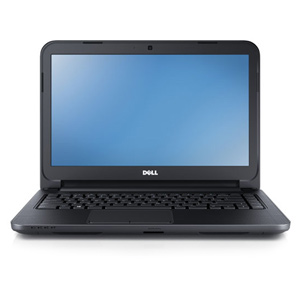
Latest Launched Dell Inspiron14 3421 Laptop Features

The DELL laptops, well-known for their quality products and sleek design have once again revolutionized the computer world with the introduction of Dell Inspiron 14 3421. A clean, impressive and neat design with backlit keyboard and an excellent battery life describes the new Dell 14z. Let us not forget the best feature: affordable price! It thins down the bulky look without sacrificing performance or battery life. Dell gives a warranty of 1 year for its product quality and compatibility. In this era where the trend is headed towards ‘Thinner is better’ DELL INSPIRON scores a straight 10/10.14.It run on a 2.3 GHz Intel Core i3 processor with 500 GB hard drive and 4 GB RAM. It offers many high-end unique features.

dell_inspiron14_3421_laptop_features
PERFORMANCE:

The 3rd Generation Intel Core Processor quickens the speed of the system with the support of the Windows 8 which syncs the files and photos to the cloud. The Window 8 works well with different apps and also gets thing done faster and better. Upgraded to the new 2GB NVIDIA graphics, it takes motion pictures to the next level and almost makes them real. Credit has to be given to their improved PC gaming and detailed vision with the new 2GB AMD Radeon.

TOUCH:

The optional touch functionality provides the use of the fingers to perform the operations be it writing, swiping and editing. The introduction of touch has given the DELL INSPIRON the feel of a mobile. Scrolling and rotating are easy with simple hand gestures effortless. The Windows 8 with its lightening speed gives quick responses to every touch.

ENTERTAINMENT:

Entertainment has never been more entertaining as it is with the Dell laptops. It has the DVD-RW drive and a 500 GB hard drive all on board for saving files, music, videos, and what not. The integrated DVD-RW is of good speed and the 35.5cm (14) vivid HD display with the 16.9 WLED.

COMPATIBLE:

The Inspiron is compatible with the new 8-in-1 memory card reader, USB 3.0 and HDMI 1.4 ports. The USB 3.0 is 10 times faster than the previously used USB 2.0. The 8 in 1 card reader makes access to media easy and convenient than the traditional cable.

SLEEK:

The Dell Inspiron 14 3421 is astonishingly thin removing all the unnecessary fat but yet offering better and more stylish appearance without sacrificing any of the important features. It has a 4 cell battery which is easy to carry along with a 2.54 cm thin with 4 cell battery.

Power:

The battery backup is for a total of 3.5 hours of power supply. The AC supply is via 65 Watts AC adapter and the warranty is for a period of 1 year. When the AC power has been cutoff, the 4 cell battery takes its place.

Offering these top quality features the Dell has set a new set of standard for the companies to compete. For networking it provides Ethernet 802.11 Wifi , Bluetooth and optional WiMax. The stereo speakers and headphone jack are for audio while the HDMI, Mini Display Port is for video. The extra RAM gives a hand to boost the multitasking. The software comes preloaded with the recent antivirus software and protects the system. The Accidental Damage Service, McAfee® SecurityCenter, LoJack for Laptops®2 and DataSafe Online backup are the power protection services offered. It is easy to carry, where ever we need to go.

Dell has taken the extra effort in manufacturing this serious allowing not a gram of extra or unnecessary part to establish the slim design. But the device is definitely worth the effort put it. A job well done indeed!

About the Author:
Vinnit Alex is an eminent author who provides concrete information about computing devices like computers and laptops, as latest Dell laptops, HP laptops are some of the devices.
Posted by Ravi Kolhe | 7/19/2013 | Continue Reading...

Reinventing Emergency Lighting

Emergency lighting is the lighting system that is required in case there is an emergency like a fire or bombing or any other such event. In an emergency, the main power supply is the first thing that either shuts off automatically or is shut down manually to minimize the spread of fire etc. The emergency lighting is required in areas which can be used by people of all ages to exit from the premises. The purpose of these lights is to give illumination in times of emergencies so that exiting becomes safe and quick.

Types of Emergency Lighting Systems

There are basically three categories in which most of the emergency lighting schemes fall. These categories are as follows:

1. Non-maintained: the emergency lights that fall in this category illuminate only in case of a mains failure.

2. Maintained: the maintained emergency lights are those that illuminate not only during a mains failure but at all times. Under this system, the same lamps are used in both situations, normal and emergency.

3. Sustained: the sustained emergency light system is a combination of the non-maintained system and the maintained system. The emergency lights under the system have two sets of lamps or two lamps as required. One of these lamps or sets of lamps operates on the mains supply while the other operates from the battery supply in case the mains supply fail.

Existing and New Emergency Lighting Technologies

Fluorescent_Lamps
Fluorescent Lamps: fluorescent lamps have long been used as emergency lights in most buildings. These lamps are cost effective, provide wider illumination and consume less energy. However, as compared to some of the newer techniques available today, fluorescent lamps take longer to light up and are not as energy efficient as other techniques.

Photoluminescent Technology: this is one of the latest techniques used in emergency lighting. The technique involves charging of the lamps when they are actually in use. The best thing about the technique is that it does not rely on an electric or a battery source when required in case of an emergency as it already charges the lamps when they are used in the normal course. The photoluminescent lamps are not there to illuminate a space but provide the individuals and the people around an idea of the space around them, in case of an emergency.

LED: the light emitting diode technique is increasingly being used in emergency lights as the energy consumption quotient of LED lamps is the lowest. They are highly cost effective and provide uniform lighting. The LED lights enjoy a long life and therefore they justify the costs, which might be slightly higher than the conventional methods of emergency lighting.

LED emergency lighting
UL924 LED emergency lighting: an addition to the already existing LED emergency lighting system is the UL924 system in which the existing LED fixtures are connected with additional small profile LED drivers and battery packs. The purpose of these battery packs and drivers is that, in case of a power outage, the modules connected get a constant supply of current. This technique provides capability to the non-LED fixtures to act as emergency LED lights.

P4 Fastel Technology: launched by the P4 Limited Co. of the UK, the Fastel technology delivers state-of-the-art emergency lighting for buildings, commercial or private. The technology works well for stand-alone lights, ones that are monitored through the internet or the PC, those that have self-contained luminaries or are addressed by the central battery systems. Reliability, cost effectiveness and full compliance with the emergency lighting regulations are the benchmark features of the P4 Fastel technology. The technology provides an extensive range of conversion services under which any mains luminaires may be converted to act as emergency lights.

Areas for Emergency Light Units

Areas for Emergency Light
Emergency light units must be such installed that they clearly guide the occupants of the premises, the exit routes that lead to the final exit. For places that are not exact exit points, signs should be put up indicating the way to the exit. For this reason, individual stairways, corridor intersections, changes in levels and directions, lifts, toilet areas and the outside of every final exit should be duly lit with a sign.

Emergency lighting systems form to be an integral part of all types of buildings and they must conform to the regulations applicable in the particular country.

About the Author:
Michael Clark is the writer of this article. He writes for a number of sites including a site that offers led emergency light bars and other emergency lights. The site is very popular for its emergency lights and high quality emergency light bars.
Posted by Ravi Kolhe | 9/06/2013 | Continue Reading...

The Risks and Benefits of Cloud Computing

Cloud computing involves connecting to a remote server and using that as your remote hard drive. When you work on your computer and create a file, you can save it to your hard drive. But, if you are cloud computing then you save that file to a remote server. You send it over the Internet into a cloud space that is password protected so that only you can access it. This cloud server space may be bigger than your current hard drive which will mean that you get more room to save your files. You can even make a backup of everything on your PC if you like. Here are a few benefits and risks that are involved with cloud computing.

The benefits of cloud computing

Here are a few benefits of cloud computing. The list is not exhaustive, but gives a good gist of the advantages of cloud computing.

Uploading and downloading is quicker than with a website

The rate at which you can move information to and from a Cloud sever is often a lot quicker than in any other case. For example, it is quicker than sending files that are attached to an email.

It may be more secure than saving locally

One may or may not assume that one’s hard drive (local storage) is secure. There is a chance that it has already been hacked or has malware sending its data to another source. It may even have been tampered with by a member of staff.

The Risks and Benefits of Cloud Computing
You can access the information around the world

When you save something to your cloud server, you then have access to it around the world (most countries anyway). This means you do not need to worry about taking hard copies with you to other countries.

It is easier to share documents with other people

Lots of Cloud services have made it easier for people to share their documents online via their cloud service. This is often quicker than sending hard copies, or even sending via email.

Most cloud computing services has fail safe backup copies

Not all of them do, but some of them do. They save your files in mirrored locations so that if they have a big systems crash or are hacked, there is still a chance your files will be saved.

You may have more cloud space than hard drive space

This is true because you can increase the amount of Cloud space that you have.

The risks involved with Cloud computing

There are some risks involved with cloud computing, to the point where you are simply trusting your data to be handled by another person. Here are some risks you may be facing when Cloud computing.

If you cannot connect to the Internet then you are in trouble

To save files on the Cloud, you need to be able to connect to the Internet and send the files online. If you cannot get online then you cannot send or retrieve files. If you really need them, then you will have to find a way to connect before being able to continue.

It may be less secure than saving locally

On the contrary to this point on the benefits section above, it is possible for your hard drive to be more secure than the cloud computing server is.

If the server goes down then you cannot access your documents

Just like if your Internet goes off, if the cloud server goes down, then you cannot access your files. This means that any work on them must cease until the server comes back online again.

What happens if your cloud server is corrupted, infected or hacked?

Again, if this happens then your files are lost. And, even if they are not lost, they are compromised, as how can you be sure of who has looked at or altered one of your documents. For all you know, your files may have been published on Facebook by the hacker this morning.

Essentially you are entrusting your files to a stranger

The people who run the cloud computing service are just people. They are supposed to follow the laws regarding privacy and security, but there is no guarantee that they will. It may even just be one sneaky employee who decides to start looking for ways to make money, such as by selling your files to your competitors.

What proof do you have that your files are not being looked at by others?

This ties into the point made in the previous paragraph. Even if your files are not stolen, do you really want to risk the fact that a hacker or cloud computing member of staff is going to go and look at your files?

About the Author:
The article was written by Sonia Jackson from http://www.essay-land.com. She can ask all your questions about writing and editing.
Posted by Ravi Kolhe | 6/04/2013 | Continue Reading...

How to Create Customized Browser for Your Computer

Yes, you heard it right! You can also create your own custom web-browser for your computer and browse within it. There may be a question rise in your mind that how we can make a browser without knowing any coding, but don’t worry because there is a free online tool which let you make your own browser with some customized features without any coding to do. If you want to make yours and want to know how then you’ve to read this post because here we’re going to teach you briefly how to make your own browser for PC.

Customizations you can apply:

In the browser you are going to make, you can apply the following customizations, i.e

1. Your own logo

2. Custom Name

3. Custom bookmarks and homepage

4. Custom features – given below etc.

How to Make Your Own Browser Online:

Now here we’re going to teach you how you can make your own web-browser for your computer, having your own logo icon, bookmarks etc. Actually we’ll be make use of MakeMyBrowser which let you do it. The process of making a browser with this is very easy and straight forward, all you need to do is to follow the below instructions and do the steps carefully.

Step-1: First of all you need to do is go to MakeMyBrowser’s WEBSITE [www.makemybrowser.com] and then click on “Start Now” button.

Step-2: In the new page, you will need to give a name to your browser and set your own (or pre-made) icon to the new browser, So enter the name in the first box, and click on ‘Select or upload’ button, a new box appear where you have to select an icon or click on upload button if you want to upload your own.

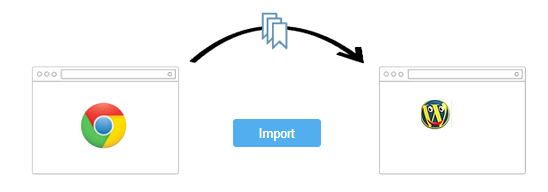
Step-3: Now next step is to add your bookmarks, so click on select bookmarks button at the lower-right corner. After you click on this button, it asks you that do you want to import your bookmarks from google chrome browser ? Now it is upto you, click import if you want or click “Continue/Skip” button if you don’t want.

Create Customized Browser
Step-4: Here you can add your own bookmarks to the browser, Gmail, Facebook, Yahoo and Amazon are already added if you want to add your own then you’ve to click on ‘Add A New Bookmark’ so you’ll be given two boxes first is to add the link and second is name. Also click on ‘Select Homepage’ if you want to select a homepage of your own choice. After setting that click on add features.
Create Customized Browser
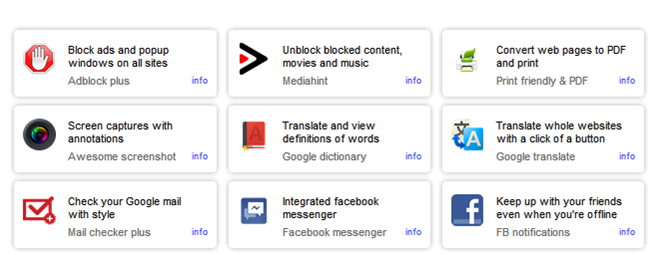
Step-5: Now here are some features you can add to your new browser you’re going to make i.e popup blocking, Unblock blocked sites, Translator, screen captures with annotations, etc. So select one by one in the list which you want to add to your newly browser and then click on Select Theme button.
Create Customized Browser
Step-6: Now you’ll be given 8 themes from which you can select a theme you want. As you select a theme, your browser is ready to download, now click on finish and download button so an automatic download starts and you can see the new browser you created in your downloads folder. Now you can install this on your computer and enjoy your own customized browser.

Read: How To Make Free Online Phone Calls
So friends, above we shared a web-based application which can be used in order to make your own web-browser for your computer, I hope you liked this post.

About the Author:
Basheer Ahmad loves to surf online share useful tools regarding internet/tech etc, through his blog. He recommends to Convert/Download Youtube Videos Using Free Online Tools without any software.
Posted by Ravi Kolhe | 1/20/2014 | Continue Reading...

Pesky Virus? Get Your Fix Online

One minute you are merrily chugging right along, facebooking, twittering, skyping, listening to music, emailing, and the next minute you are stopped cold with a big fat blue and gold Seal of the US Federal Bureau of Investigation displayed on your browser. The seal is accompanied with a disturbing message that your computer has been locked down because you illegally downloaded copyrighted items. The message is accompanied by detailed instructions on how to pay your fine throughGreen Dot MoneyPak which can be used to “reload prepaid cards, add money to a PayPal account…, or make same-day payments to major companies”.

You’ve just had your first and hopefully last exposure to the FBI virus! The virus has been around for a few years but new variants keep popping up. They all use scare tactics such as displaying your name and address or even activating your webcam to install a photo in message. It can cause extreme anxiety as no matter what you do, such as pressing control + alt + delete, restarting the computer, or trying various different tricks to pull it out of the frozen state, nothing but nothing works. How many victims have run out to buy the MoneyPak, and pay the scammers yet when they return, they quickly discover their beloved machine still unresponsive. Of course not everyone reports the attack, but Symantec estimates that one version of the virus netted the scammers $5 million. What should you next? How can you quickly get back online to facebooking, twittering, and skyping?

PESKY VIRUS? GET YOUR FIX ONLINE
Without your computer, it’s difficult to search out options for repair. You can try and remove the virus yourself; the websites of Microsoft Answers and Symantec provide guidance but if you aren’t a techie this might end up in more frustration. You can take your unit to a Best Buy Geek Squad or other retailer, but this involves carrying your unit out, and leaving it in strangers hands for several days. You can hire someone locally to come in, but without referrals, this can be risky. A relatively new option available is a technical service that specializes in remote access online computer repair. Call them, and they will walk you through the steps needed to allow them to control your computer, and they remove the virus while you watch. They can also free your unit from other virus’ and malware, clean the registry, and provide an overall tune-up. Prices vary so if you have the time, check around for two or three quotes, but keep in mind cheaper is not always better. Compare services, follow-on support, and availability for your final decision. As there is no need to leave your home, and no spending the night without your beloved computer, this is an easy, convenient option to quickly get back online.

About the Author:
As a writer and mid-level techie who uses a pc daily, Teresa Stewart has experienced the frustration of having a computer frozen up by a virus. For FBI virus removal, LiveTechOnDemand is an affordable online computer repair service that can get your computer up and running in the convenience of your own home. The service is twenty-four/seven so technical support is available for you when you need it.
Posted by Ravi Kolhe | 5/17/2013 | Continue Reading...